Quarto in 1-2-3
1. What is Quarto?
Quarto is a powerful tool for creating reproducible documents, presentations, and websites. It supports a wide range of output formats (HTML, PDF, and Word, etc). It can run R, Python (including Jupyter notebooks), and Julia code. In short, it enables you to publish books, decks, websites, etc.
It’s prefect for blogging/ technical writing which has numerious benefits in terms of career develpment:
- learning to writing is learning to think1
- it organize your own knowledge which helps you synthesize new ideas2
- become a source of dopamine for future self3
This website itself is built using Quarto, and this guide shows how that is done in 3 simple steps!
Installation
To install Quarto, you can use the following command:
pipx install quarto-cli- 1
-
quarto is actually written in Pandoc but there’s a python interface around it called
quarto-cli
or
brew install --cask quarto- 2
-
if it’s already installed, you could update with a
brew upgrade --cask quarto, usebrew outdated --caskfirst to check if there’s a newer version available.
2. Creating a Website Project
The official docs on how to create a website is actually pretty comprehensive, but there’s the TLDR:
Create
The following command will create a new directory for your project and setup the scaffolding for a simple website in the my-awesome-site directory:
quarto create project blog my-awesome-site- 1
- use this to setup a site with a blog built-in
or
quarto create project website my-awesome-site- 2
- use this if you are sure you want a website without a blog and wanna keep things nice and simple
Blog
if you have used the quarto create project blog option above, you can control the listing of your blogs in your index.qmd which will be a listing page4
Render
While editing your website/ blog, you can run quarto preview5 to preview your site in a browser.
Or use quarto render which can give you more granular control. You open the pages rendered in docs6 manually to “preview” changes. quarto render will render the whole site which you might not need to do everytime since it’s time consuming. You can instead render individual pages or sections of your site for example, just a blog post:
quarto render blog/first_post.qmdby default, Quarto will render the site to the _site directory but you should change that to docs using the output-dir variable in your project configuration _quarto.yaml:
_quarto.yaml
project:
type: website
output-dir: docs
website:
title: "My Super Awesome Site"
favicon: favicon.ico
navbar:
logo: logo.png
left:
- href: index.qmd
text: Home
- about.qmd
format:
html:
theme: cosmo
css: styles.css
toc: true- 1
- need this for Github Pages deployment later
- 2
- more about setting up website nav here
- 3
- an about page is create by default, here’s a detailed guide on how to set it up.
- 4
- these are the available options for HTML themes
- 5
- Optional: put your site’s logo here, if you have one, which will appear in the navbar.
- 6
- Optional: put your site’s favicon here, if you have one.
3. Deploy to Github Pages
there are three ways to deploy to Github Pages but the Render to docs method is the simplest and my personal preference. Here’s how to set it up step-by-step:
create github repo
First create a new repository on Github, then add it as a remote:
cd my-awesome-site
git init
git remote add origin https://github.com/username/repository.git
git pull origin main- 1
- update this to whatever your repo’s URL is
- 2
- pull in things like README.md, .gitignore,LICENSE.md, etc.
gitignore
optional but might be good idea to make sure that _site7 and .quarto are ignored:
.gitignore
/.quarto/
/_site/

# other items to ignore
...
init commit
then just add and commit:
quarto render
touch .nojekyll
git add docs .gitignore .nojekyll
git commit -m "init commit"
git push origin main- 1
-
this should create everything in
docsper above - 2
- tell Github Pages not to do additional processing of the site’s content using Jekyll
- 3
- this will only add the rendered html files, you of course have the optional to add other files
configure github repo
finally, go to your Github repo’s settings and enable Github Pages. Choose the docs folder as the source:
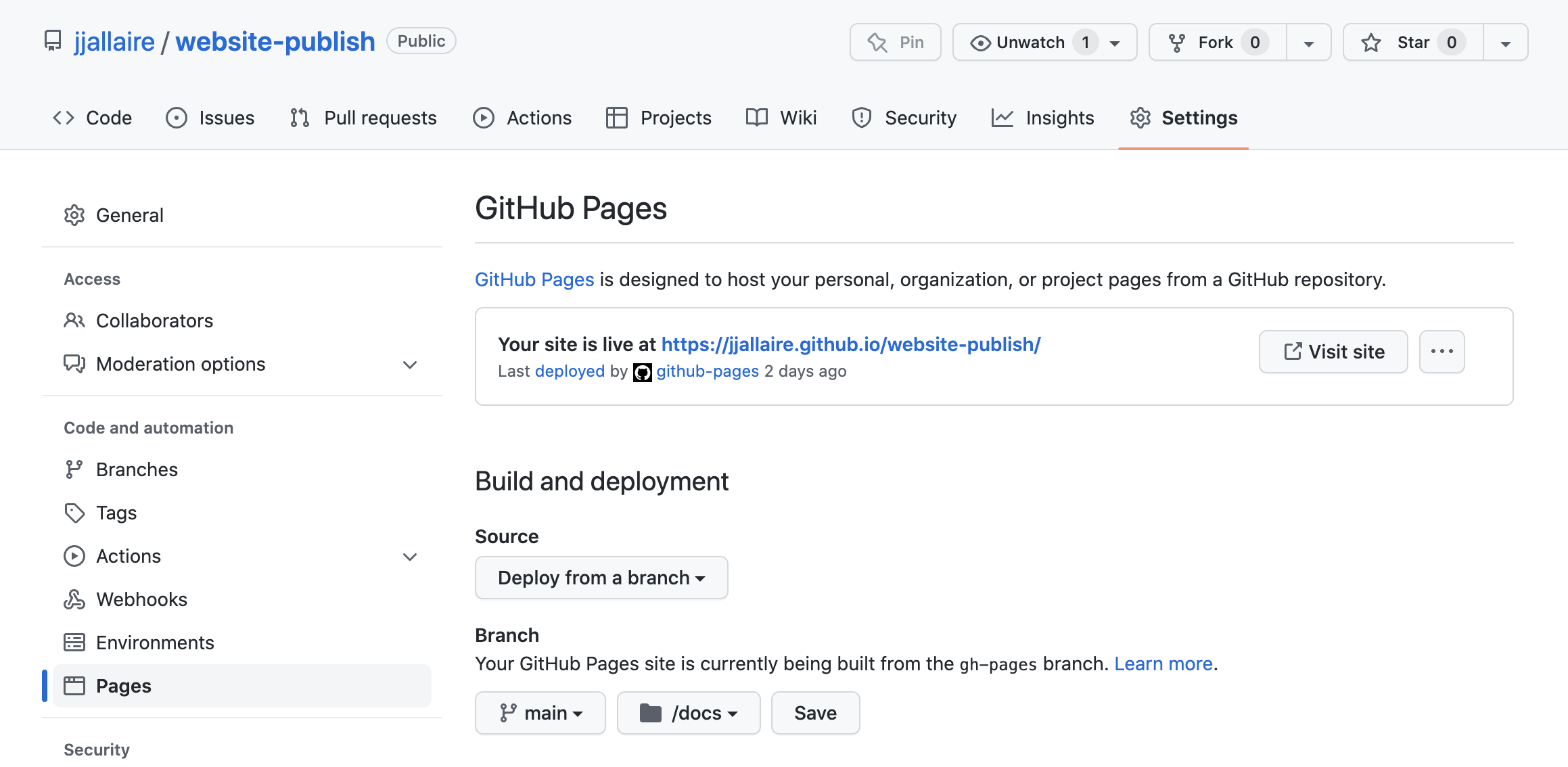
And that’s it, your site is live!
Going forward, as you add new content, you just simply:
quarto render
git add docs
git commit -m "add new content"
git push origin main
Footnotes
Jordan Peterson propose picking a hard problem and write about it. William Zinsser summerized this process even better in his book Writing to Learn↩︎
Jeremy Howard made this case on why you should blog and Rachel Thomas (co-founder of FastAI) advocates writing as personal branding or even alternative to a degree↩︎
as Chase Hughes defines discipline a price of writing can be thought of then as a stepping stone as you progress towards your higher goal or advance in the field that you are writing about. The act of writing about something, forces you to discover the gaps in your thinking. The filling in of those gaps teaches you to really get a full grasp of the idea that you are writing about. The act of having written, having produced something tangible, having manifested something from the mental field into the physical, creates a small foundation for you to step on or fallback on.↩︎
it’s great because the whole site’s rendered and you can see the changes being applied in real-time. However, for a blog with lots of computational heavy pages, it might be better to use
quarto renderinstead or make sure your posts are frozen by default in yourposts/_metadata.yml↩︎or whereever you configured your
output-dirto be in your_quarto.yaml↩︎created during
quarto preview, see more about ignoring output from the official documentation↩︎